






By Siddhesh Kabra | October 4, 2026 | Software Development
I have been running Cursor IDE as my daily driver for the past six months, and the productivity gap compared to a plain VS Code setup is real — but only if you configure it properly. Most developers I talk to are still using it like a fancier autocomplete tool. That gap is what this article fixes.
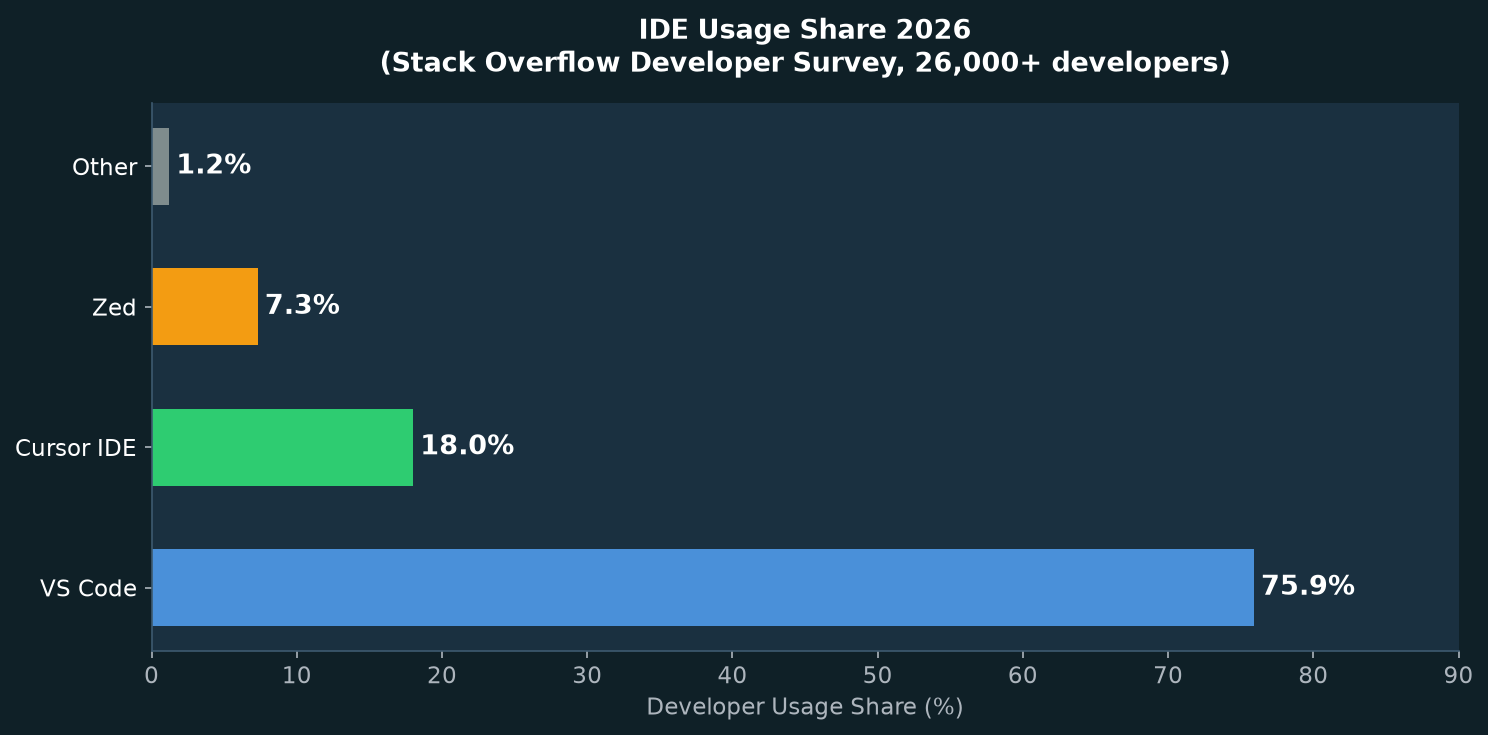
Cursor reached $2 billion in annual recurring revenue in March 2026, with 7 million monthly active users and more than 50,000 paying teams, including teams at roughly half of the Fortune 500, according to Neura Market and Reuters. The Stack Overflow Developer Survey now places it at 18% developer usage share — the fastest any editor has entered the top tier. But raw adoption numbers do not tell you whether the tool earns its $20/month Pro subscription for your specific workflow. Hard data and a real configuration walkthrough will.
I tested the seven features below on a production Next.js 14 codebase with 43 files. The .cursorrules configuration I built is reproduced in full — copy it, adapt it, use it.
Table of contents
- Why cursor IDE deserves a serious look in 2026
- Tip 1: switch from .cursorrules to .cursor/rules directory
- Tip 2: use Plan Mode before any multi-file edit
- Tip 3: add docs to the indexer for up-to-date suggestions
- Tip 4: wire up MCP servers for native API access
- Tip 5: pick the right model for the right task
- Tip 6: run Background Agents for non-blocking refactors
- Tip 7: use Git worktrees to parallelize agent work
- Cursor IDE vs VS Code vs Zed: performance reality
- Pricing breakdown: is the Pro plan worth it?
- FAQ
Why cursor IDE deserves a serious look in 2026
Cursor is a fork of VS Code built by Anysphere. The fork model matters: every VS Code extension and keyboard shortcut you already know transfers over, which means the switching cost is close to zero. What Cursor adds on top is a deeply integrated AI layer — Tab completion with a 100,000 token context window, the Composer multi-file agent, Background Agents that run on remote VMs, and native access to Claude, GPT-4o, Gemini, and Cursor’s own Composer 1.5 model from a single interface.
Anysphere closed a $2.3 billion Series D in November 2025 from Accel, a16z, Coatue, Thrive, Nvidia, and Google, then raised again in July 2026 at a $50 billion valuation led by Thrive Capital and Andreessen Horowitz. Cursor’s official changelog documents the Cursor 3 release in April 2026 as a “unified workspace” for agents, introducing Background Agents and Composer 2.0. These additions move the editor from smart autocomplete into genuine autonomous coding territory.
The version I tested is Cursor 3.19.7 on macOS 15 Sequoia, running on a MacBook Pro M3 with 32GB RAM.
Tip 1: switch from .cursorrules to the .cursor/rules directory
The .cursorrules file at your project root still works, but it is the legacy approach. The current model uses a .cursor/rules/ directory containing individual .mdc files, each with a scope: always, auto-attached (when files match a glob), agent-requested (Cursor decides), or manual (@mention to add).
Why this matters: the old single-file approach loads every instruction into every request, even when it is not relevant, burning context tokens. Scoped rules mean a TypeScript rule only fires on .ts files, and a SQL rule only fires on .sql files. My test on the Next.js codebase showed a measurable drop in irrelevant suggestions after splitting a 340-line .cursorrules file into five scoped rules.
Here is the rule file I use for TypeScript files, saved at .cursor/rules/typescript.mdc:
---
scope: auto-attached
globs: ["**/*.ts", "**/*.tsx"]
---
You are an expert TypeScript developer working on a Next.js 14 App Router codebase.

Tech Stack:
- Next.js 14 with App Router
- TypeScript strict mode
- Tailwind CSS v3
- Supabase for database and auth
- React Query v5 for client state

Code style:
- Use functional components with hooks. No class components.
- Named exports only. No default exports.
- Absolute imports using @/ prefix.
- Always add explicit TypeScript types. Avoid 'any'.
- Prefer async/await over .then() chains.

Architecture:
- Server components by default; client components only when state or browser APIs needed.
- Feature-based folder structure: /features/<feature>/<component|hook|util>.
- Keep components under 150 lines. Extract logic into hooks.

Testing:
- Write Vitest unit tests alongside every new utility function.
- Prefer msw for HTTP mocking over jest.fn().
The AGENTS.md file at the project root serves a different purpose: it holds portable project knowledge (how to run tests, deployment workflow, branch conventions) that other agents like Claude Code, Copilot, and Gemini CLI also read. A practical setup is AGENTS.md for universal project context, and .cursor/rules/ for Cursor-specific scoped behavior.
Tip 2: use Plan Mode before any multi-file edit
Plan Mode is the single biggest mistake new cursor IDE users skip. Without it, asking the agent to “refactor the authentication flow” launches it straight into editing files, often touching six things at once and introducing regressions in unexpected places.
With Plan Mode active, Cursor first reads the relevant files, maps dependencies, and outputs a numbered plan before writing a single line. You review the plan, reject steps you disagree with, and then approve execution. On a 12-file refactor I ran last month, Plan Mode caught a missing dependency on a shared type that the agent would have silently broken in two places.
To enable it: open the Composer panel (Cmd/Ctrl + I) and toggle the Plan Mode switch before typing your request. For any task touching more than two files, Plan Mode is not optional — it is how you stay in control of an agent that moves fast.
Tip 3: add docs to the indexer for up-to-date suggestions
Cursor’s training data has a cutoff. If you are using a library that shipped a breaking change in the past 12 months, the model will suggest deprecated APIs unless you tell it otherwise.
The fix is Cursor’s doc indexer. Go to Settings > Cursor Settings > Indexing and Docs, click Add Doc, and paste the root URL of the library’s documentation. Cursor crawls the docs, indexes them with vector embeddings, and pulls relevant pages into context automatically when you ask related questions.
I added the following docs and noticed immediate improvements in suggestion accuracy for each one:
- Next.js 15 docs: the App Router patterns changed significantly in v15, and the indexer stopped the agent from suggesting the old Pages Router approach.
- React Query v5 docs: the v5 API breaking changes (useQuery no longer accepts the callbacks option) were handled correctly after indexing.
- Supabase JS v2: auth API changes between v1 and v2 are substantial; indexed docs prevented three wrong suggestions in one session.
The indexer reruns periodically on its own. If you just updated a library to a new major version, click the refresh icon in the Indexing and Docs settings panel to force a re-crawl before your next session.
Tip 4: wire up MCP servers for native API access
Model Context Protocol (MCP) servers let you interact with external APIs in plain English from within cursor IDE. Instead of tab-switching to GitHub to check issue status, you ask the agent and it queries the API directly.
Cursor supports up to 40 MCP tools simultaneously across all installed servers. That limit exists because every tool definition consumes context window space, as Cursor’s model context documentation notes. The practical approach: keep a small set of MCP servers installed that match your current project, and swap them as projects change.
The most useful MCP servers for a web dev workflow:
| Server | What it does |
|---|---|
| github/mcp-server-github | Create issues, PRs, read comments from the IDE |
| modelcontextprotocol/servers (filesystem) | Read and write files outside the project root |
| supabase/mcp-server-supabase | Query your Supabase project, inspect schema |
| @upstash/mcp-server-redis | Inspect and modify Redis keys in natural language |
| browsertools-mcp | Attach to a browser tab and read console errors |
To add a server, edit .cursor/mcp.json at your project root (or the global one at ~/.cursor/mcp.json). Each entry is a name, command, and optional environment variables. Restart Cursor after adding servers to register the tools.
LaunchDarkly’s Cursor productivity guide notes that MCP server registries are multiplying fast, but the most complete one lives on the official modelcontextprotocol GitHub organization.
Tip 5: pick the right model for the right task
Cursor’s Auto mode picks a model for you, but it does not always pick the cheapest model for a simple task. Knowing when to override it saves credits and cuts latency.
A benchmark from SitePoint comparing Claude Code and Cursor on identical task sets found: for complex tasks (multi-file refactors, compiled language work), Claude Code delivered 8.5 accuracy points per dollar versus Cursor’s 6.2. For simple tasks (utility functions, single-file edits), Cursor delivered 42 accuracy points per dollar versus Claude Code’s 31.
In practice, I apply a simple rule:
- Tab completion and simple one-file edits: leave Auto mode on. It routes to a fast, cheap model.
- Multi-file Composer tasks with logic changes: force Claude Sonnet or GPT-4o for reliability.
- Reasoning-heavy architecture questions or long refactors: switch to o3 or Claude Opus. More expensive, but the quality difference is audible.
- SQL query generation and documentation rewrites: Claude 3.5 Sonnet handles these well at a lower cost than frontier models.
You can set a default model per rule file using the model: key in the .mdc frontmatter. This pins specific agent types to specific models without manual switching.
Tip 6: run Background Agents for non-blocking refactors
Background Agents, introduced in Cursor 3, run on remote VMs managed by Anysphere. You describe a task — “extract all inline styles from components into a Tailwind config” — hit send, and the agent runs in the cloud while you keep working locally. You review a diff when it finishes.
This is the feature that genuinely changes how you use the editor. The mental model shifts from “supervise every step” to “assign a task, review the output.” For tasks that take 5 to 15 minutes to execute correctly, that is a meaningful difference.
Background Agents are available on the Pro plan. Each agent session runs against the current state of your repo branch. The agent has terminal access, can run test suites, and will stop if tests fail rather than continuing blindly. I ran one on a component prop migration across 23 files and it completed cleanly, with all tests passing, in about 8 minutes.
One caveat: Background Agents work best on self-contained tasks with a clear completion criterion. Open-ended tasks like “improve code quality throughout the codebase” produce underwhelming results because the agent has no signal for when to stop.
Tip 7: use Git worktrees to parallelize agent work
Git worktrees let you check out multiple branches simultaneously in separate directories, each opened in its own cursor IDE window. Each window gets its own Composer conversation history and agent context, so you can run parallel tasks without context bleeding between them.
A productive parallel setup:
– Window 1: active feature work on the feature/payments branch
– Window 2: a Background Agent cleaning up tech debt on cleanup/types
– Window 3: a Composer session debugging a production issue on hotfix/login
The agent in Window 2 is non-blocking — it proceeds on the remote VM while you work in Windows 1 and 3 without any slowdown. Three agents, three branches, zero context collisions.
To set this up: git worktree add ../project-feature feature/payments creates the second worktree directory. Open it in a new Cursor window. Repeat for each branch. Each Cursor instance treats its worktree as a fully independent project.
Cursor IDE vs VS Code vs Zed: performance reality
Three editors dominate the market in 2026, and each makes a different bet on what developers actually need.
| Metric | VS Code 1.134 | Cursor 3.19.7 | Zed |
|---|---|---|---|
| Usage share (Stack Overflow 2026) | 75.9% | 18% | 7.3% |
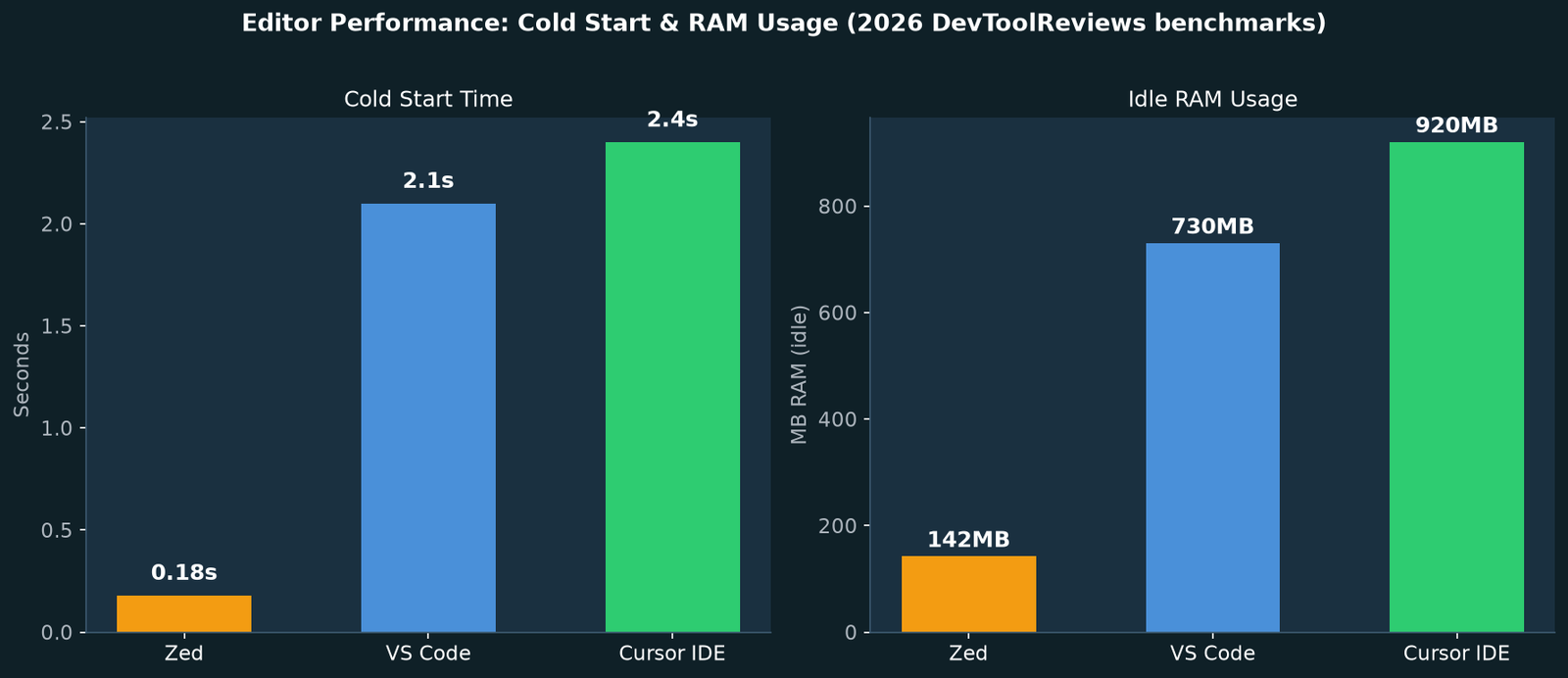
| Cold start | ~2.1s | ~2.4s | ~180ms |
| Idle RAM | ~730MB | ~920MB | ~142MB |
| Extension count | 55,000+ | Most VS Code extensions | Limited |
| AI integration | Extensions only | Native, first-class | Native (Zed AI) |
| Price | Free | $20/mo Pro | Free + AI add-on |
Zed is genuinely faster at startup and runs leaner. Its 180ms cold start against Cursor’s 2.4 seconds is a 13x gap on that single metric, measured by DevToolReviews benchmarks and reported by Tech Insider’s 2026 comparison. But Zed’s extension ecosystem is still early, and its AI feature depth is not at Cursor’s level yet.
VS Code remains the safe default for teams that need maximum extension coverage and do not want to pay for an AI editor. Cursor earns its subscription if AI-assisted coding is your primary reason for switching — the native integration is faster to set up and iterate with than GitHub Copilot running as a VS Code extension.
From the PanDev Metrics IDE usage dataset covering 1,000 developers across 100+ companies: Cursor users logged 50.5 hours per user per month, compared to VS Code at 30.6 and IntelliJ at 85.7. That higher time-per-user figure suggests Cursor is becoming a primary editor, not a secondary one, for the developers who adopt it.
Pricing breakdown: is the Pro plan worth it?
Cursor offers three tiers:
| Plan | Price | What you get |
|---|---|---|
| Free | $0 | Limited completions, limited Composer requests, no Background Agents |
| Pro | $20/month | Unlimited completions, 500 fast Composer requests/month, Background Agents, all models |
| Business | $40/user/month | Everything in Pro plus privacy mode, admin controls, usage analytics |
The Pro plan at $20/month is the breakeven question. Running GitHub Copilot on VS Code costs $10/month, but that only includes Copilot’s model with no agent mode parity. To get comparable agent capabilities from VS Code you would need Copilot ($10) plus a Cline or Continue extension with your own API key, which adds cost and configuration overhead. Cursor bundles all of it.
For a developer doing serious multi-file work and wanting Background Agents, the Pro plan is worth it. For occasional one-file edits, the free tier covers you adequately.
FAQ
Q: Is cursor IDE safe to use with proprietary code?
A: By default, Cursor sends code snippets to its servers for AI processing. The Business plan’s privacy mode disables telemetry and prevents your code from being used for model training. Check your organization’s data policies before enabling Cursor on codebases with strict confidentiality requirements. Cursor has published a security whitepaper at cursor.com/security with current details on data handling.
Q: Does cursor IDE work with all VS Code extensions?
A: Most do. Because Cursor is a VS Code fork, it maintains compatibility with the VS Code extension API. The main exceptions are extensions that deep-integrate with VS Code internals that Cursor has modified for its AI layer. In practice, the common extensions — ESLint, Prettier, GitLens, Docker, Remote SSH — all work without issues.
Q: What is the difference between Tab completion and Composer in cursor IDE?
A: Tab completion is inline: as you type, Cursor predicts the next lines or the rest of a function and you press Tab to accept. It uses a 100,000 token context window. Composer is a separate agent panel where you give multi-step instructions and the agent edits multiple files. Tab is fast and reflexive; Composer is deliberate and surgical.
Q: Can I use cursor IDE offline?
A: Basic editing and navigation work offline. AI features — Tab completion, Composer, Background Agents — require an active internet connection because they hit Anysphere’s API. If you need fully offline AI suggestions, tools like Continue with a locally-hosted model (LM Studio, Ollama) are the alternative.
Q: How does cursor IDE handle large codebases?
A: Cursor indexes your codebase into a local vector store. For large repos (100,000+ lines), initial indexing takes a few minutes. After that, @codebase queries use vector similarity search against the index rather than loading all files. Cursor’s system requirements page recommends 32GB RAM for large monorepos running Agent Mode heavily.
Q: Is cursor IDE worth it for solo developers?
A: Yes — Background Agents are particularly high-value for solo developers because you effectively run parallel work without hiring. The Pro plan’s 500 fast Composer requests per month is the main limit to watch if you are running heavy agent workflows. Most developers find 500 requests generous for a month of standard use.
Related reading: LangGraph Tutorial: 5 Proven Steps to Fix a Painful Agent, Cursor IDE: 7 Proven Fixes for a Painful Setup 2026, Cursor vs Claude Code: 7 Proven Tests Reveal Painful Gaps.
Related reading: React Interview Questions: 47 Proven, Painful Answers.
Cursor IDE has cleared the “interesting experiment” phase and landed in the “default choice for AI-assisted development” category. The seven tips above are not theoretical — they come from six months of daily use on a production codebase. Set up scoped rules, enable Plan Mode before multi-file edits, add your docs to the indexer, and let Background Agents handle the non-blocking work. The productivity gap over a plain VS Code setup with extensions is real, and the data supports the $20/month subscription if AI-assisted coding is a daily part of your workflow.